
Exploring and Building Apps
To start using the TKE Customer API, make sure you have an active user account in TKE Customer Portal.
If you already have a TKE Customer Portal user, please make first access to the Developer Portal using one of the following environments:
Production Europe / Africa (EA) - https://developer.ea.tkelevator.com/signin
Production Asia / Pacific (AP) - https://developer.ap.tkelevator.com/signin
Production Americas (AMS) - https://developer.ams.tkelevator.com/signin
Test environment - https://max-customerapi-stable.developer.azure-api.net/signin
If you do not have an account, please visit the developer portal for your region, Getting Started session and request your access by filling in the form.
Production Europe / Africa (EA) - https://developer.ea.tkelevator.com/getting-started
Production Asia / Pacific (AP) - https://developer.ap.tkelevator.com/getting-started
Production Americas (AMS) - https://developer.ams.tkelevator.com/getting-started
Test environment - https://max-customerapi-stable.developer.azure-api.net/getting-started
Understanding Equipment Access Control
Our Customer API gives you access to your entire equipment portfolio, including elevators and escalators. This access is managed by your commercial contact and by the branch responsible for your API contract with TKE. If you need any changes to your portfolio access, please contact your local commercial team and they will provide the necessary support.
Using the API programmatically - Obtaining access tokens
The following information shows some parameters needed to obtain an access token and use the API programmatically.
This can be easily adapted to any programming language that is able to file a HTTP Request.
Please see the following parameters needed to request your token:
Auth URL (OAuth2 Token Endpoint): https://maxcustomerportal.b2clogin.com/maxcustomerportal.onmicrosoft.com/B2C_1_ROPC/oauth2/v2.0/token
clientID: 74c72ab2-3ade-45fe-83e0-cd5b90704539
username: email (developer portal user)
password: password (developer portal password)
scope: find the correct scope for your region below
Production Europe / Africa (EA) :
https://maxcustomerportal.onmicrosoft.com/8dd798e8-2cb3-434e-955a-8f47af82dd2b/api
Production Asia / Pacific (AP):
https://maxcustomerportal.onmicrosoft.com/dafd8460-e4b1-42b9-bf5b-56051f0854ad/api
Production Americas (AMS):
https://maxcustomerportal.onmicrosoft.com/f7a436a1-be24-48b4-8b32-c89c92fc0ea3/api
Test environment:
https://maxcustomerportal.onmicrosoft.com/a2f5f882-a93d-495d-a583-bb4d38285cdc/API
Once you get the token, you need to send it (Header) with every request made to the API to successfully authenticate your request.
See below an example of how to obtain an access token using cURL.
curl example for AMS:
curl --location 'https://maxcustomerportal.b2clogin.com/maxcustomerportal.onmicrosoft.com/B2C_1_ROPC/oauth2/v2.0/token' \
--header 'Content-Type: application/x-www-form-urlencoded' \
--data-urlencode 'grant_type=password' \
--data-urlencode 'username=sam.sample@mail.com' \
--data-urlencode 'password=*************' \
--data-urlencode 'client_id=74c72ab2-3ade-45fe-83e0-cd5b90704539' \
--data-urlencode 'scope=https://maxcustomerportal.onmicrosoft.com/f7a436a1-be24-48b4-8b32-c89c92fc0ea3/api'
Obtaining Access Token - Postman Collection
Access the collection provided by TKE (collection), go to the Variables tab, and fill in the following fields:
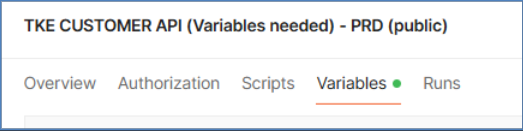
auth_client_id: follow session above (Obtaining Access Token - Postman Collection)
auth_scope: follow session above (Obtaining Access Token - Postman Collection)
auth_username: follow session above (Obtaining Access Token - Postman Collection)
auth_password: follow session above (Obtaining Access Token - Postman Collection)
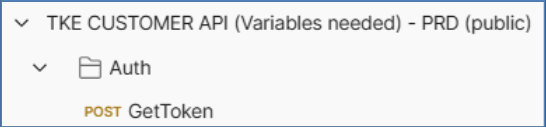
After, call the GetToken method, in the Auth folder:
Getting your subscriptions keys per product
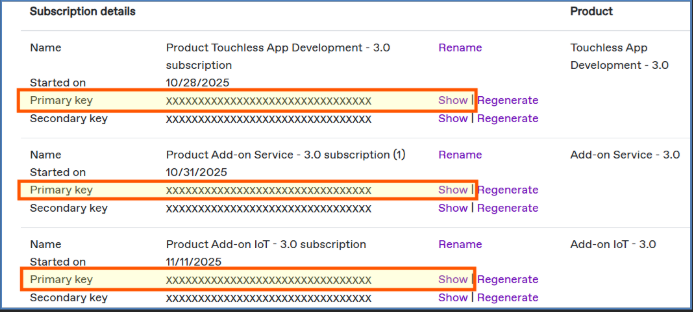
To get your subscription keys and start calling the APIs, log in to the Developer Portal and navigate to the Profile menu.

Click on each product key to reveal it. You will need one key per product to call the different APIs. Please refer to the next section to learn how to use these keys.
Making Your First API Call (Postman) – Listing Your Units
Once you have the access token and your subscription keys, you can start calling the APIs you have access to.
Let’s start listing your equipment (units) and retrieve unitIDs, deviceID and tenantIDs for each one.
These IDs are unique identifications for equipment. You will also use them to call other detailed APIs, to identify one equipment.
To call the Equipment API and retrieve all units your user has access to, access Equipment API Folder in Postman Collection
NOTE: If you call the EQUIPMENT LIST API and the unit list is empty, please request access to your units in the Customer Portal by contacting your sales representative.
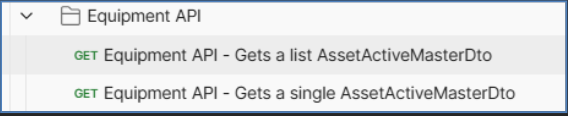
To call Equipment API - Gets a list, some other variables are needed in the collection variables in postman.
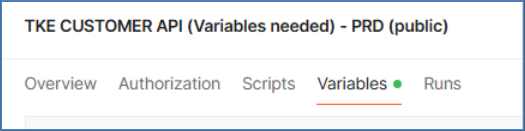
Environment: Use one of the following values for production:
https://api.ams.tkelevator.com
https://api.ea.tkelevator.com
https://api.ap.tkelevator.com
subscription_key_add_on_iot: follow Getting your subscriptions keys session above
subscription_key_add_on_service: follow Getting your subscriptions keys session above
subscription_key_work_order_management: follow Getting your subscriptions keys session above
subscription_key_touchless_app_development: follow Getting your subscriptions keys session above
api-version: 3.0
access_token: will be generated automatically after call the GetToken method.
Calling other endpoints (Postman)
All other endpoints require a tenantID, unitID, or deviceID to identify a specific piece of equipment.
Once you have a list of units and their individual IDs, you can call other APIs, such as the Equipment API to retrieve a single asset or the Elevator Statistics API.
You can use these IDs directly on the developer portal as filters
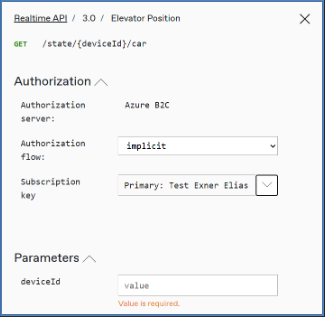
In Postman, you can fill the global collection variables:
tenantId: Use the Equipment API to get an ID
unitId: Use the Equipment API to get an ID
deviceId: Use the Equipment API to get an ID
dateFrom: Start period for statistics API
dateTo: End period for statistics API